> For the complete documentation index, see [llms.txt](https://docs.heisenware.com/llms.txt). Markdown versions of documentation pages are available by appending `.md` to page URLs; this page is available as [Markdown](https://docs.heisenware.com/app-manager/overview.md).
# Overview
The App Manager is the administrative center of your Heisenware account. Here you create new Apps, monitor account usage, and manage your members.
## Key features
The App Manager has four main areas:
* [**Apps**](#apps): The default landing page where you create, configure, and deploy Apps. From here, you can also [manage App access and your users](/app-manager/users-and-access.md).
* [**Dashboard**](#dashboard): A real-time summary of account-wide performance and user metrics.
* [**Members**](/app-manager/members.md): The interface for inviting and managing your members.
* [**Integrations (inbound)**](/app-manager/inbound-integrations.md): Monitor and authorize data from [Agents](/app-builder/build-backend/agents.md), MQTT, and VRPC clients.
## Apps
Manage Apps, their settings, and users inside the Apps panel.
### Create a new App
{% stepper %}
{% step %}
#### Initialize
Click the plus icon in the top bar to create a new App container.
{% endstep %}
{% step %}
#### Configure
Enter a name and description, upload an icon, and define your initial [Users and access](/app-manager/users-and-access.md) settings.
{% endstep %}
{% step %}
#### Start building
Click Start App Builder on the App card to open the development environment in a new tab.
{% endstep %}
{% endstepper %}
{% hint style="info" %}
The total number of Apps you can create depends on your plan. [Contact us](mailto:support@heisenware.com) if you need additional Apps for your plan.
{% endhint %}
### App settings
* **Name**: The visible title on desktops, home screens, and browser tabs. Keep this under 10 characters for the best mobile display.
* **Description**: Optional internal notes. These are not visible to users.
* **Icon**: The logo used for the favicon and home screen icon. Works best as a square image. Leave padding around the logo, since mobile devices often apply a circular cutout.
* **Language (Beta)**: Heisenware can automatically translate your App using AI. Supported reference languages include English, German, French, Turkish, Italian, and Spanish. [Contact us](mailto:support@heisenware.com) for access to this feature.
### App status and control
Each App card shows its current availability:
* **RUNNING**: The App is live and reachable via its URL.
* **EXITED**: The App has been manually stopped.
* **CREATED**: The App container exists but has never been deployed.
* **UNAVAILABLE**: An error has occurred. Try to redeploy.
### Delete an App
Click the red Delete App button to remove an App.
{% hint style="danger" %}
#### Deleting an App is irreversible
There is no undo. Save a [tag](/app-builder/deploy-and-maintain.md#tags-snapshots) (`.hwt` file) from the App Builder before deleting if you want to preserve your work.
{% endhint %}
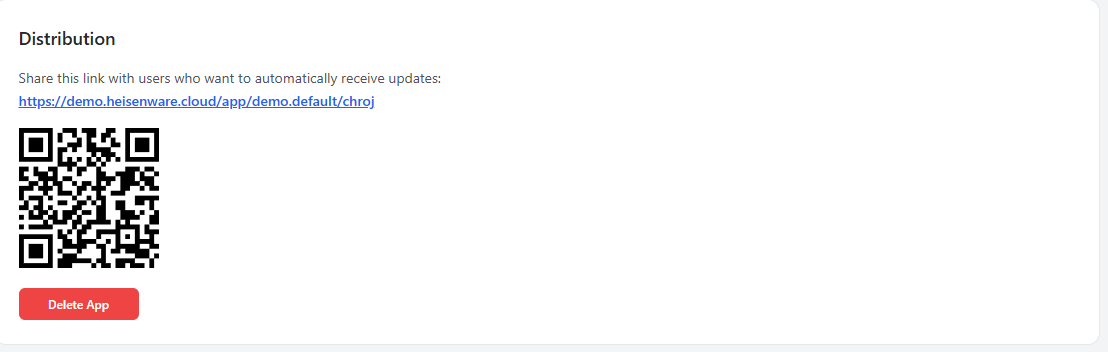
### Distribution
Each App is distributed via a unique URL or QR code, both found directly on the App card in the Apps panel.
### Maintenance
To take an App offline, use the action switch on the card to toggle between Run and Stop.
## Dashboard
The Dashboard panel gives you a real-time summary of your account's performance, including usage stats like total App views and unique users across all Apps.
---
# Agent Instructions
This documentation is published with GitBook. GitBook is the documentation platform designed so that both humans and AI agents can read, navigate, and reason over technical content effectively. Learn more at gitbook.com.
## Querying This Documentation
If you need additional information that is not directly available in this page, you can query the documentation by asking a question.
Perform an HTTP GET request on the following URL with the `ask` and `goal` query parameters:
```
GET https://docs.heisenware.com/app-manager/overview.md?ask=&goal=
```
`ask` is the immediate question: it should be specific, self-contained, and written in natural language.
`goal` is what the user is ultimately trying to achieve, the reason they need the answer. Sharing it helps GitBook give you a better, more relevant answer. A goal is most helpful when it describes the outcome the user wants rather than restating the question. For example, with `ask=how do I create an API token`, a goal like `automate deployments from our CI pipeline` lets GitBook tailor the answer to that use case.
The response will contain a direct answer to the question and relevant excerpts and sources from the documentation.
Use this mechanism when the answer is not explicitly present in the current page, you need clarification or additional context, or you want to retrieve related documentation sections.
.png?alt=media)
.png?alt=media)
.png?alt=media)
.png?alt=media)
.png?alt=media)
.png?alt=media)