> For the complete documentation index, see [llms.txt](https://docs.heisenware.com/llms.txt). Markdown versions of documentation pages are available by appending `.md` to page URLs; this page is available as [Markdown](https://docs.heisenware.com/app-builder/build-frontend/widgets/input-widgets/photo.md).
# Photo
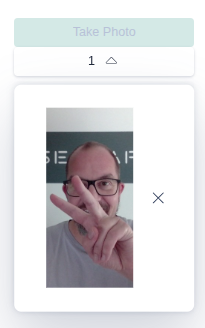
The photo widget lets users capture images with their device camera. The full-screen camera interface provides direct control over aspect ratio and orientation to support photo capture in the field. The widget stores each photo as a physical file on the server or as a Base64-encoded string, and displays a preview list of captured images.
Default view with one photo taken
{% hint style="info" %}
#### Alternative photo capture options
The upload widget also captures photos at higher resolutions since v88. Use the photo widget when you require webcams, smaller image sizes, or specific aspect ratios.
{% endhint %}
## Data binding
### Widget to function input
| **Property** | **Description** | **Type** |
| ------------ | -------------------------------------------------------------------------------------------------- | -------- |
| `images` | Fires when a user takes, saves, or deletes a photo. The payload carries an array of photo objects. | array |
### Function output or modifier to widget
| **Property** | **Description** | **Type** |
| ------------ | ------------------------------------------------------------- | -------- |
| `images` | Populates the widget with an existing array of photo objects. | array |
| `isLoading` | Displays a loading indicator when `true`. | boolean |
| `button` | Overrides the capture button configuration at runtime. | object |
### Data formats
The structure of the photo objects inside the `images` array depends on your configured storage type.
**File storage payload**
When `storageType` is set to `file`, the payload provides a server path:
```json
{
"lastModified": 1678886400000,
"name": "photo-mar-15-2023-120000",
"type": "image/jpeg",
"path": "/shared/runtime-files/a1b2c3d4e5.jpeg"
}
```
**Buffer storage payload**
When `storageType` is set to `buffer`, the payload provides a Base64-encoded string:
```json
{
"lastModified": 1678886400000,
"name": "photo-mar-15-2023-120000",
"type": "image/jpeg",
"base64": "iVBORw0KGgoAAAANSUhEUgA..."
}
```
## Configuration
Set the widget's defaults in the settings panel.
### General settings
| **Property** | **Label** | **Description** | **Type** |
| ----------------- | ------------------------ | -------------------------------------------------------------------------------------------------------------------------------- | -------- |
| `storageType` | Storage type | Controls whether the widget stores each photo as a physical file on the server (`file`) or as a Base64 string (`buffer`). | string |
| `aspectRatio` | Aspect ratio | Sets the aspect ratio of the camera view. Use `cover` to fill the available screen area. | string |
| `orientation` | Orientation | Dictates the camera capture orientation, supporting `portrait` or `landscape`. | string |
| `maxPhotos` | Maximum number of photos | Sets the total number of photos the widget can hold. The capture button disables automatically when the list reaches this limit. | integer |
| `resolution` | Resolution | Sets the active camera capture resolution quality, supporting `preview`, `balanced`, `high`, or `original`. | string |
| `thumbnailHeight` | Thumbnail size | Sets the layout height of the preview thumbnails in pixels. | number |
### Button configuration
The widget renders a button to activate the camera interface. Style the default appearance directly in the settings panel, or pass a `button` object to override its properties from backend logic at runtime. The configuration object accepts standard button fields including text, hint, font size, type (`default`, `normal`, `success`, `danger`, `back`), and styling mode (`text`, `contained`, `outlined`).
---
# Agent Instructions
This documentation is published with GitBook. GitBook is the documentation platform designed so that both humans and AI agents can read, navigate, and reason over technical content effectively. Learn more at gitbook.com.
## Querying This Documentation
If you need additional information that is not directly available in this page, you can query the documentation by asking a question.
Perform an HTTP GET request on the following URL with the `ask` and `goal` query parameters:
```
GET https://docs.heisenware.com/app-builder/build-frontend/widgets/input-widgets/photo.md?ask=&goal=
```
`ask` is the immediate question: it should be specific, self-contained, and written in natural language.
`goal` is what the user is ultimately trying to achieve, the reason they need the answer. Sharing it helps GitBook give you a better, more relevant answer. A goal is most helpful when it describes the outcome the user wants rather than restating the question. For example, with `ask=how do I create an API token`, a goal like `automate deployments from our CI pipeline` lets GitBook tailor the answer to that use case.
The response will contain a direct answer to the question and relevant excerpts and sources from the documentation.
Use this mechanism when the answer is not explicitly present in the current page, you need clarification or additional context, or you want to retrieve related documentation sections.