> For the complete documentation index, see [llms.txt](https://docs.heisenware.com/llms.txt). Markdown versions of documentation pages are available by appending `.md` to page URLs; this page is available as [Markdown](https://docs.heisenware.com/app-builder/build-frontend/widgets/display-widgets/toast.md).
# Toast
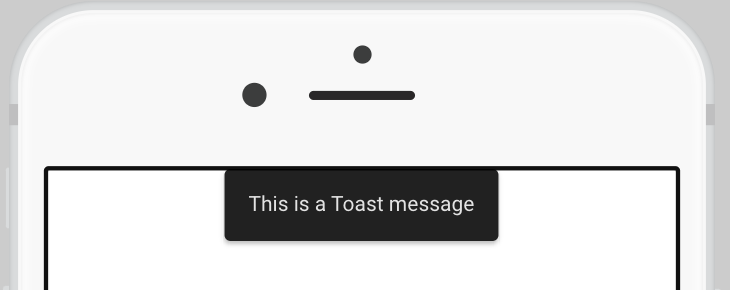
The toast widget displays temporary, timed notification messages at specified positions on the screen. It visualizes alert text strings or detailed event error objects triggered by backend logic in your Apps.
## Data binding
### Function output or modifier to widget
| **Property** | **Description** | **Type** |
| ------------ | ------------------------------------------------------------------------------------------------ | ---------------- |
| `message` | Supplies the text string or structured object block to be broadcast as a temporary notification. | string \| object |
### Data formats
The `message` property accepts either a flat string or a structured object to dynamically append cause diagnostics to the notification framework.
**Plain text message** A standalone string printed directly within the notification body: `"Operation completed successfully."`
**Structured message object** An object containing explicit `message` and optional `cause` properties. If a `cause` is provided, the widget appends it to the display layout automatically as `${message}, because: ${cause}`:
```json
{
"message": "Database write failed",
"cause": "Connection timeout"
}
```
## Configuration
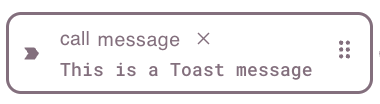
Set the widget's defaults in the settings panel.
Toast widget in build mode
### General settings
| **Property** | **Label** | **Description** | **Type** |
| ------------- | ----------------- | ------------------------------------------------------------------------------------------------------------------------------------------------------------------------- | -------- |
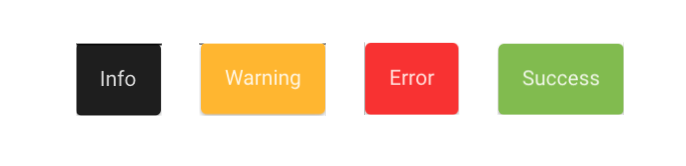
| `type` | Notification type | Sets the notification alert category style (options include `info`, `warning`, `error`, or `success`). Visual color schemes are managed globally within the Theme Editor. | string |
| `displayTime` | Display time | Sets the duration in milliseconds that the notification stays visible on screen before automatically fading out. Defaults to `3000` (3 seconds). | integer |
| `position` | Position | Sets the display anchor placement region on the screen viewport (such as top right, top center, top left, bottom right, bottom center, bottom left). | string |
Toast types in the default theme colors
## Tips and tricks
{% hint style="info" %}
#### Message stacking and mobile viewport scaling
When multiple backend parameters trigger the same toast widget simultaneously, the individual notifications stack on top of each other in the same position. To maintain absolute layout clarity, stagger your upstream trigger event timings or instantiate separate toast widgets.
On mobile phone viewports, the widget automatically ignores external structural parameters and optimizes its dimensions to fill the width of the screen minus 32 pixels.
{% endhint %}
## Video demo
{% embed url="" %}
---
# Agent Instructions
This documentation is published with GitBook. GitBook is the documentation platform designed so that both humans and AI agents can read, navigate, and reason over technical content effectively. Learn more at gitbook.com.
## Querying This Documentation
If you need additional information that is not directly available in this page, you can query the documentation by asking a question.
Perform an HTTP GET request on the following URL with the `ask` and `goal` query parameters:
```
GET https://docs.heisenware.com/app-builder/build-frontend/widgets/display-widgets/toast.md?ask=&goal=
```
`ask` is the immediate question: it should be specific, self-contained, and written in natural language.
`goal` is what the user is ultimately trying to achieve, the reason they need the answer. Sharing it helps GitBook give you a better, more relevant answer. A goal is most helpful when it describes the outcome the user wants rather than restating the question. For example, with `ask=how do I create an API token`, a goal like `automate deployments from our CI pipeline` lets GitBook tailor the answer to that use case.
The response will contain a direct answer to the question and relevant excerpts and sources from the documentation.
Use this mechanism when the answer is not explicitly present in the current page, you need clarification or additional context, or you want to retrieve related documentation sections.