> For the complete documentation index, see [llms.txt](https://docs.heisenware.com/llms.txt). Markdown versions of documentation pages are available by appending `.md` to page URLs; this page is available as [Markdown](https://docs.heisenware.com/app-builder/build-frontend/pdf-template-editor.md).
# PDF Template Editor
The PDF Template Editor gives you a visual workflow for designing dynamic documents. You build a template by placing dynamic placeholders onto an uploaded PDF background.
{% hint style="info" %}
The editor works exclusively with the [PDF Templates class](/app-builder/build-backend/functions/utilities/pdf-templates.md). Each template you create becomes an instance in this class, carrying the `fillTemplate` function that populates your document with data.
To see the complete process in action, follow our [step-by-step guide](/tutorials/app-templates/automating-pdf-reports.md).
{% endhint %}
## Creating a PDF template
{% stepper %}
{% step %}
#### Open the editor
Open the PDF Template Editor from the Top Bar.
{% endstep %}
{% step %}
#### Define properties
Enter a unique name for your template and choose a standard page size (`A4`, `A5`, or `Letter`).
{% endstep %}
{% step %}
#### Generate instance
Click Create Template. Heisenware generates the corresponding instance in your Function Explorer.
{% endstep %}
{% endstepper %}
## Designing the layout
Once your template is created, set up the visual background and place your dynamic fields.
### Managing pages and backgrounds
To use an existing document as a layout, first upload its pages as separate PDF files to the [File Explorer](/app-builder/build-backend/file-explorer.md).
{% stepper %}
{% step %}
#### Add blank pages
Add a blank page for each page of your source document using the Add Page icon (:circle-plus:).
{% endstep %}
{% step %}
#### Set background
Drag each page file from the File Explorer onto the corresponding blank page. This sets the file as a static background.
{% endstep %}
{% step %}
#### Organize
Right-click a page to open the context menu, where you move pages up or down or manage the layering (Bring to Front / Send to Back).
{% endstep %}
{% endstepper %}
{% hint style="danger" %}
#### Deleting a page is permanent
It removes the page, its background, and all placeholders on it. You cannot currently replace the background of an existing page.
{% endhint %}
### Placing and configuring placeholders
Placeholders are the dynamic slots where your logic inserts data.
{% stepper %}
{% step %}
#### Add placeholder
Click the text or image placeholder icon in the toolbar (:text-size:, :image:), then click the page to place it.
{% endstep %}
{% step %}
#### Assign variable
Select the placeholder and click the gear icon. Provide a variable name (e.g., `firstName`).
{% endstep %}
{% step %}
#### Style
Adjust the font, size, or colors for text, or resize the bounding boxes to define the final content area.
{% endstep %}
{% endstepper %}
{% hint style="info" %}
#### Data matching
The variable name you enter (e.g., `invoiceNumber`) must exactly match the key in the data object you provide in your backend logic later. The editor adds the `<>` tags automatically.
{% endhint %}
## Populating the template
To bring your PDF to life, call the [`fillTemplate`](/app-builder/build-backend/functions/utilities/pdf-templates.md#filltemplate) function in your backend logic. It is the engine: it takes a data object (say, a JSON object from a database), merges the values into your placeholders, and outputs the finished PDF. For detailed input and output specifications, see the [PDF Templates class documentation](/app-builder/build-backend/functions/utilities/pdf-templates.md).
To see these concepts in action, follow our step-by-step guide on [automating PDF reports](/tutorials/app-templates/automating-pdf-reports.md).
## Deleting a template
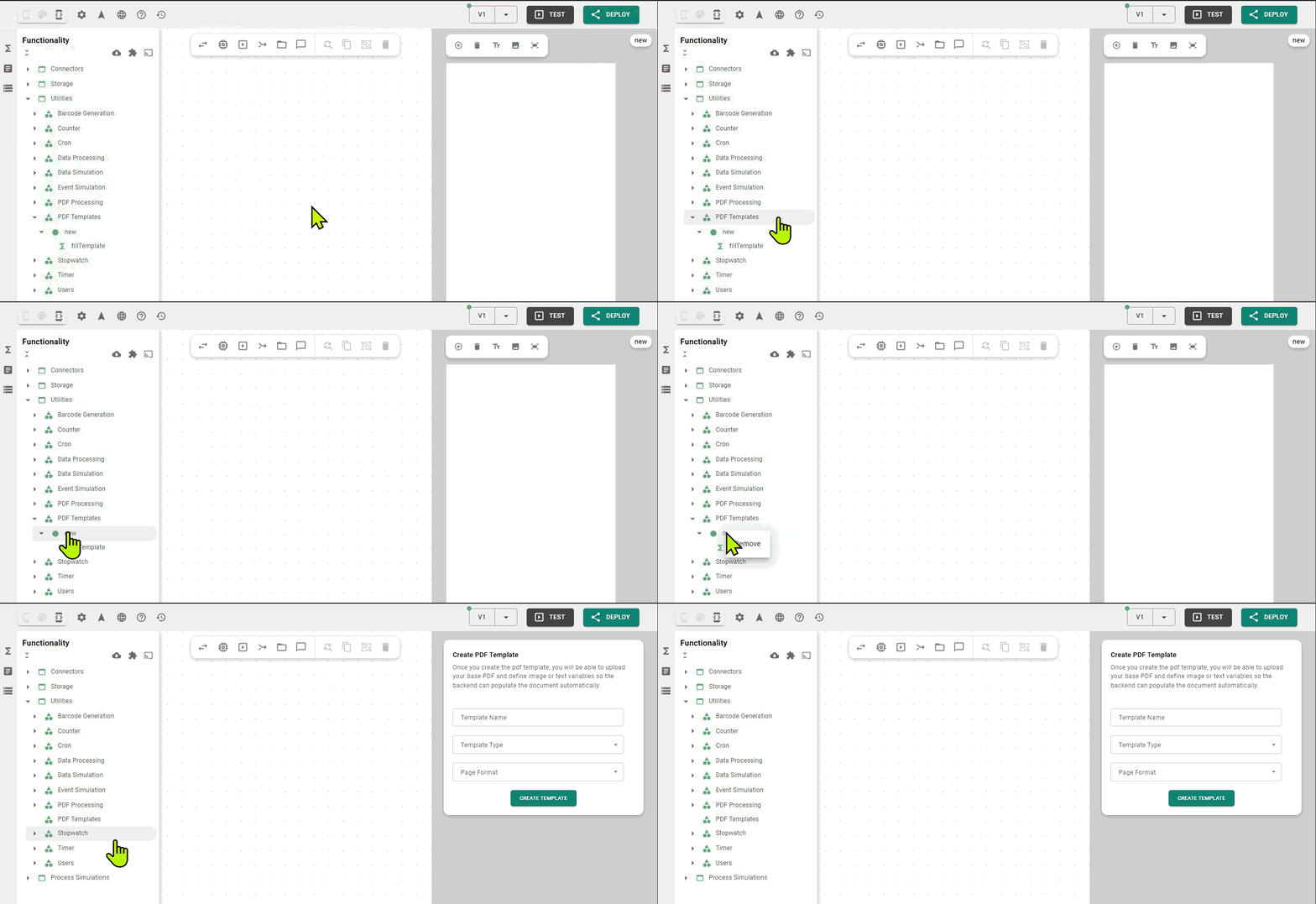
To permanently remove a PDF template and its associated function:
1. Navigate to the [Function Explorer](/app-builder/build-backend/functions/function-explorer.md).
2. Open the PDF Templates class.
3. Right-click the specific template instance.
4. Select Remove.
{% hint style="danger" %}
#### This action is irreversible
Deleting an instance removes it completely. Any logic in your Backend Builder referencing this template will break.
{% endhint %}
---
# Agent Instructions
This documentation is published with GitBook. GitBook is the documentation platform designed so that both humans and AI agents can read, navigate, and reason over technical content effectively. Learn more at gitbook.com.
## Querying This Documentation
If you need additional information that is not directly available in this page, you can query the documentation by asking a question.
Perform an HTTP GET request on the following URL with the `ask` and `goal` query parameters:
```
GET https://docs.heisenware.com/app-builder/build-frontend/pdf-template-editor.md?ask=&goal=
```
`ask` is the immediate question: it should be specific, self-contained, and written in natural language.
`goal` is what the user is ultimately trying to achieve, the reason they need the answer. Sharing it helps GitBook give you a better, more relevant answer. A goal is most helpful when it describes the outcome the user wants rather than restating the question. For example, with `ask=how do I create an API token`, a goal like `automate deployments from our CI pipeline` lets GitBook tailor the answer to that use case.
The response will contain a direct answer to the question and relevant excerpts and sources from the documentation.
Use this mechanism when the answer is not explicitly present in the current page, you need clarification or additional context, or you want to retrieve related documentation sections.

.png?alt=media) {% endstep %}
{% step %}
#### Define properties
Enter a unique name for your template and choose a standard page size (`A4`, `A5`, or `Letter`).
{% endstep %}
{% step %}
#### Generate instance
Click Create Template. Heisenware generates the corresponding instance in your Function Explorer.
{% endstep %}
{% endstepper %}
{% endstep %}
{% step %}
#### Define properties
Enter a unique name for your template and choose a standard page size (`A4`, `A5`, or `Letter`).
{% endstep %}
{% step %}
#### Generate instance
Click Create Template. Heisenware generates the corresponding instance in your Function Explorer.
{% endstep %}
{% endstepper %}