# Internal File Server
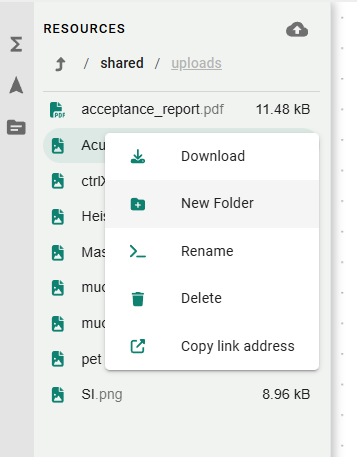
The Resources section on the left panel provides access to your Heisenware account's internal file server. This is the central location for uploading and managing any external files your logic needs, such as data files for your functions, images for the UI of your apps, or PDFs for template backgrounds.
## Uploading Files
1. Click the upload icon (:cloud-arrow-up:) at the top of the Resources section.
2. Drag and drop a file or click to select one from your computer.
3. Click Upload. The file is now ready to be used by your functions.
## Managing Files
Right-click any file to open the context menu. Here you can:
* Download the file.
* Create a new folder to organize your assets.
* Rename a file or folder.
* Delete a file or folder.
* Copy the file's path to use it directly in function configurations.
{% hint style="warning" %}
Be careful when renaming or deleting a resource. If a function (like `readCsv`) or a PDF template is already using that file path, your logic will break.
{% endhint %}
## Common use cases
* **Data ingestion**: Uploading `.csv` or `.json` files to be processed by your logic.
* **UI assets**: Storing images and illustrations to be dragged into the UI of your app.
* **Document generation**: Storing the PDF "master" files that serve as backgrounds for the [PDF Template Editor](https://www.google.com/search?q=https://docs.heisenware.com/app-builder/build-user-interface/pdf-template-editing).